
Getting Started - Import Existing Contacts
Your audience is the heartbeat of your business. Quickly import your existing contacts from various platforms into one convenient space and start engaging immediately. Having all your contacts together means less hassle, more effective outreach, and building stronger relationships right away.
TABLE OF CONTENTS
How to Import Contacts
How to Create New Custom Fields
Bulk Contact Actions
Standard Contact Fields During Import
How to Import Contacts
Streamlining your outreach starts with importing your contacts. Follow these straightforward steps to ensure a smooth import:
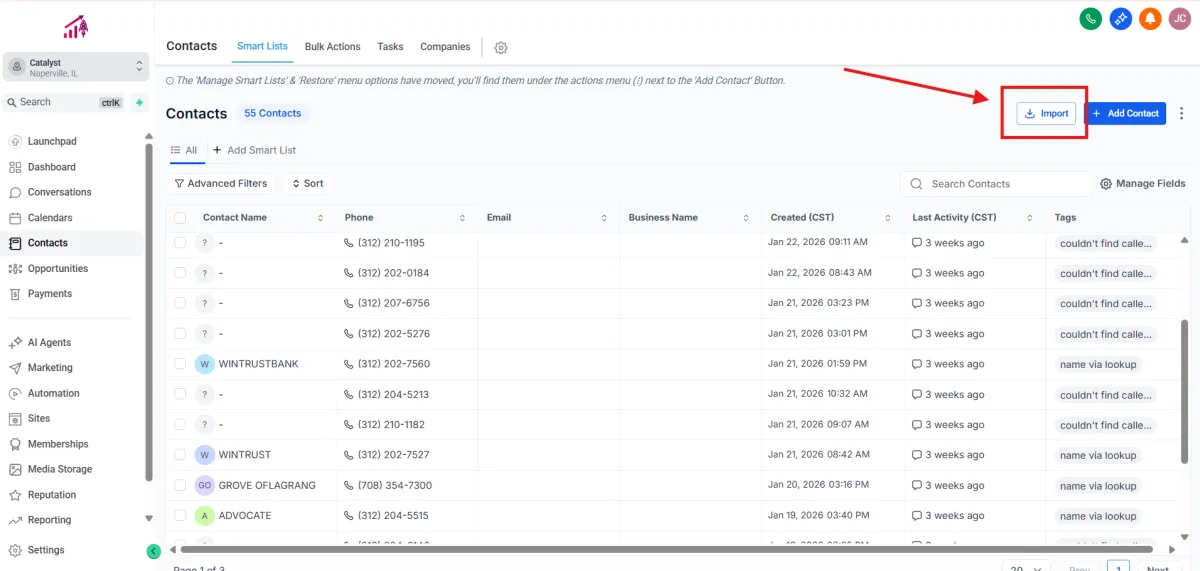
1.Navigate to Contacts.
2.Click Import (the icon looks like a downward arrow pointing into a box).
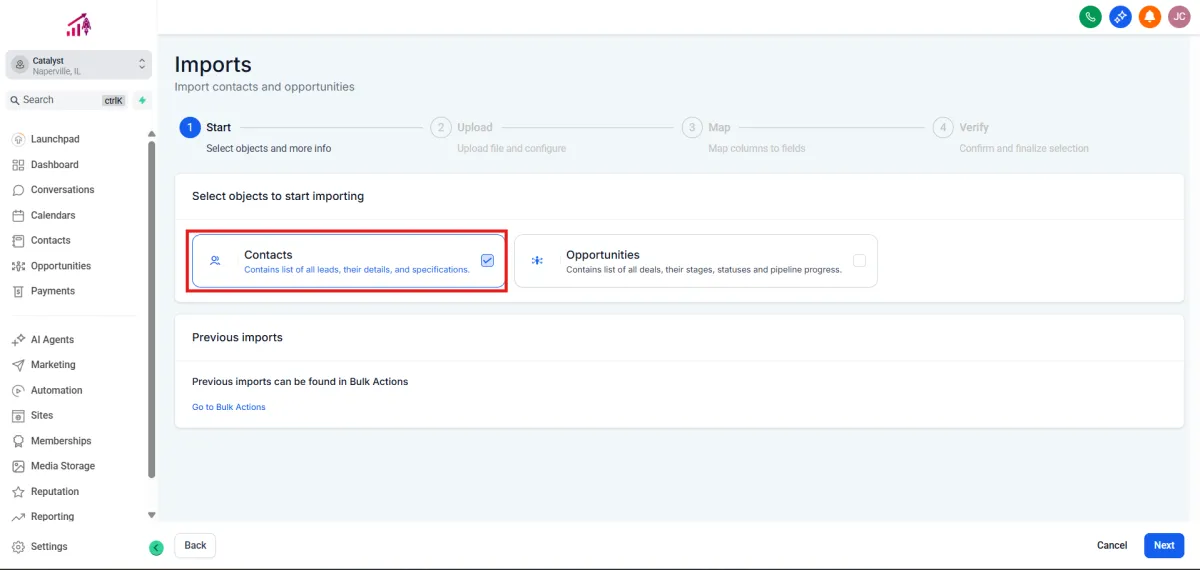
3. In Imports-1, Select Contacts and click Next
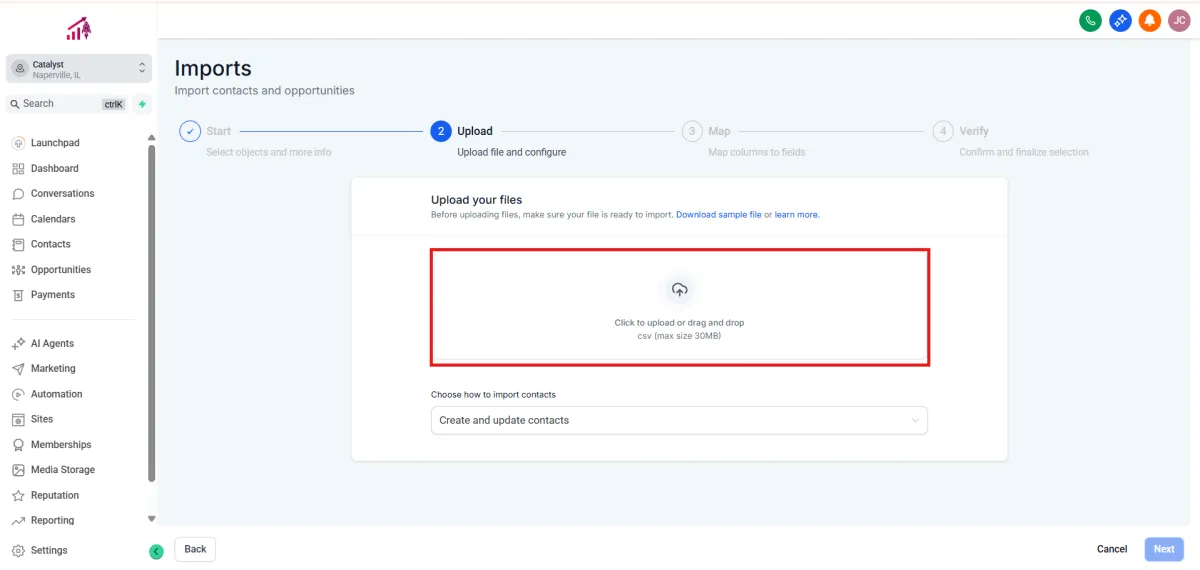
4.Confirm your file format.
5.Upload your file (CSV files up to 50MB). To download a sample file showing standard Contact Fields, click Download Sample File.
Click here to view a list of standard contact fields.
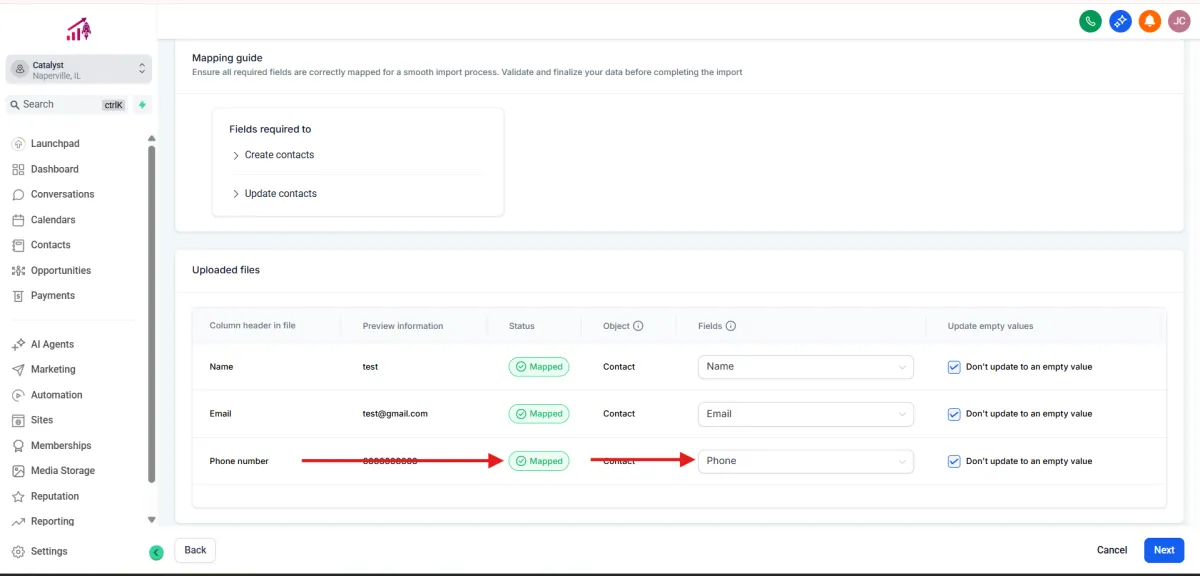
6.Map your file columns to corresponding Contact fields.
If you have non-standard data, create a new custom field.
Or select "Don't import data in unmatched columns".
7.Fill in the import details (name your import, create lists, set consent preferences, etc.) and click Bulk Import.
8.Wait for the contacts to finish importing.
Ready for the next step? Learn more:
Importing Contacts using a CSV file
Importing Contacts and Opportunities via CSV
Allow Duplicate Contacts (Contact Deduplication Preferences)
Next, you can start segmenting your audience for targeted engagement!
How to Create New Custom Fields
Personalize your contact data to match your unique business needs. Creating custom fields lets you capture exactly the information you find valuable, allowing for precise targeting and richer insights.
Here's how to set up your custom fields:
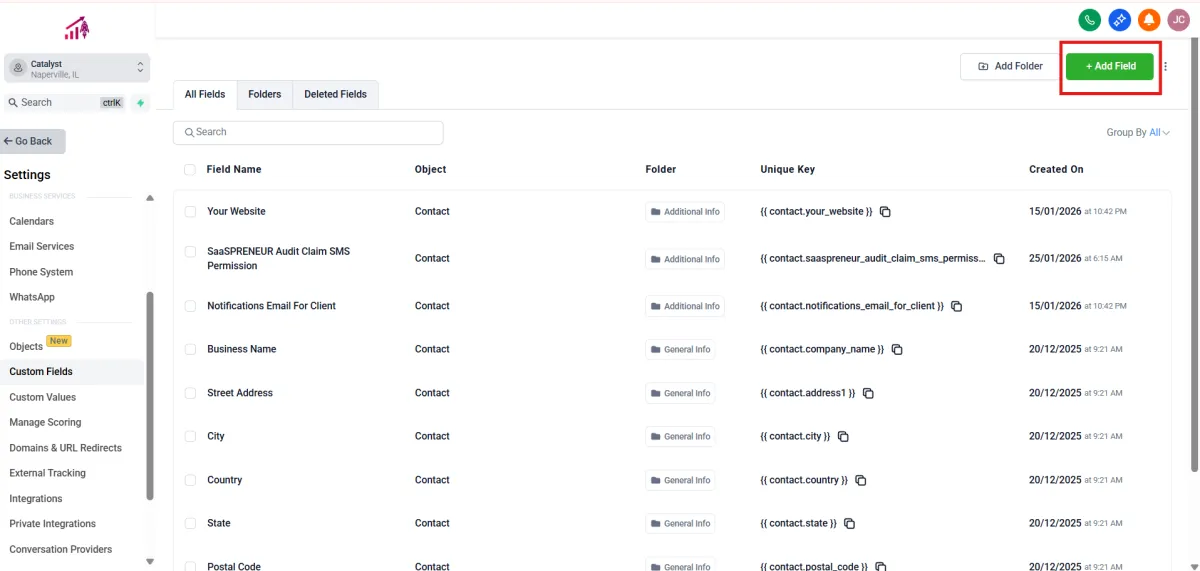
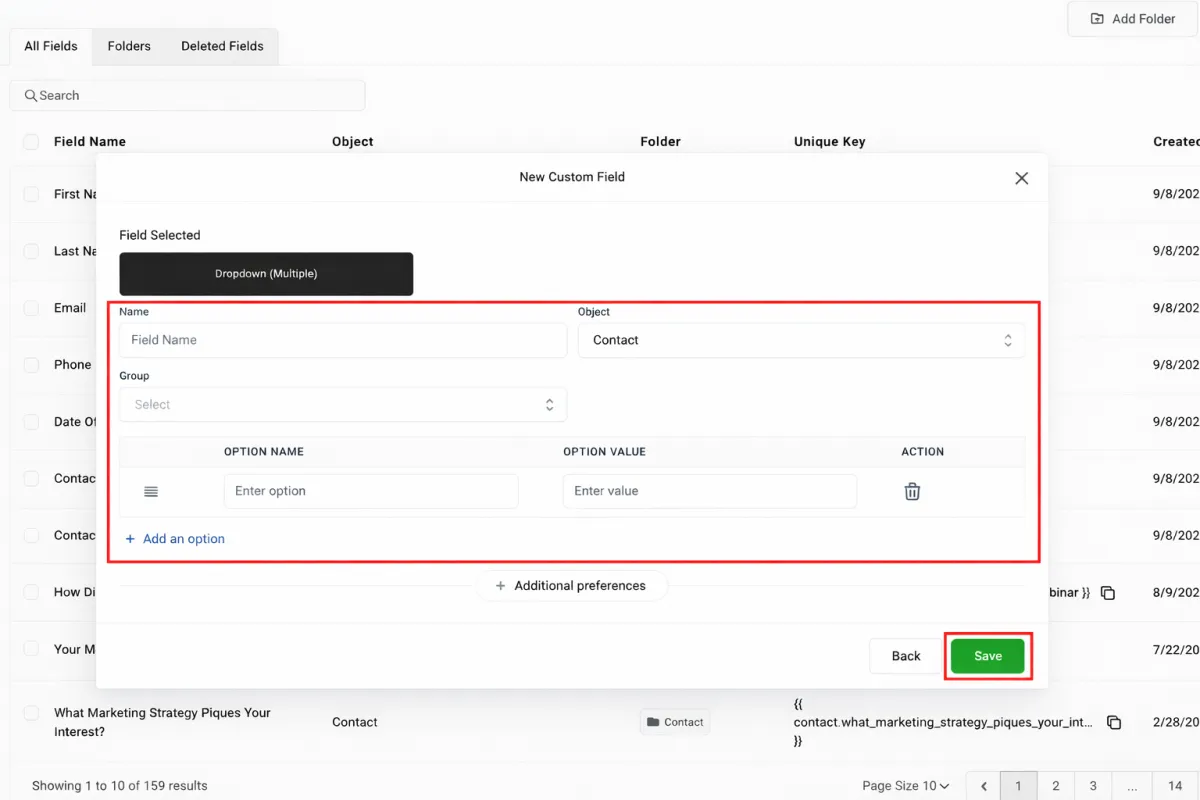
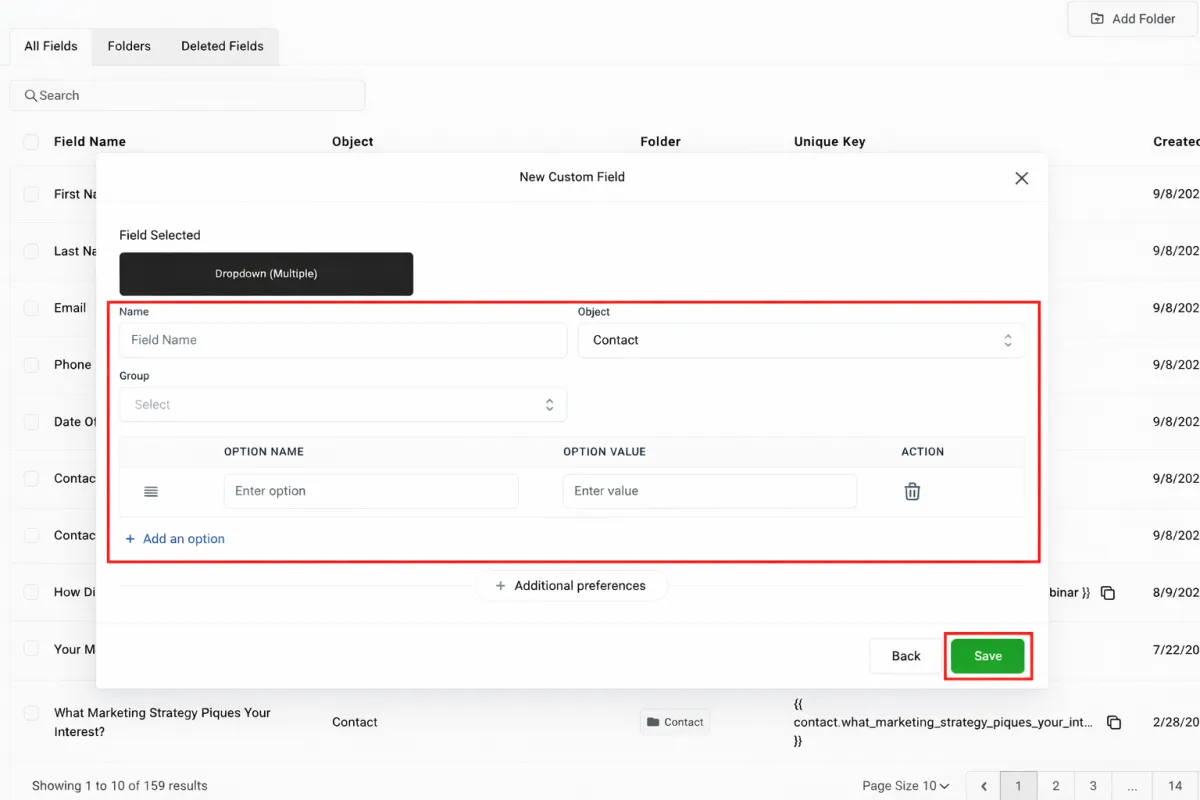
1.Navigate to Settings > Custom Fields.
2.Click Add Field.
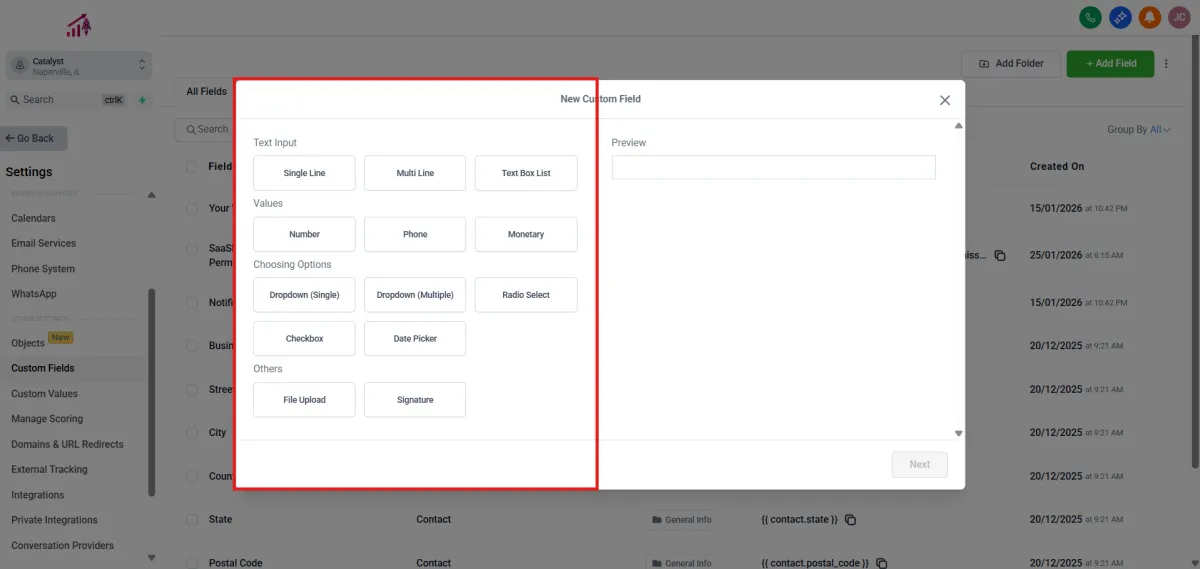
3.Select the type of field you need.
4.Fill in the field details (name, group, placeholder, etc.).
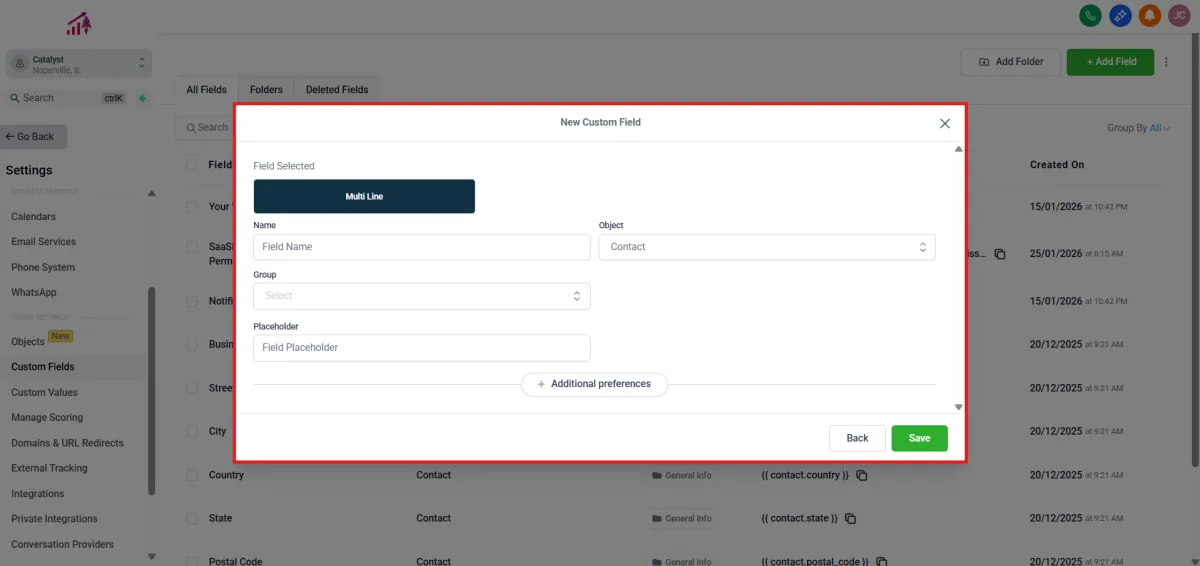
5.Click Save.
Bulk Contact Actions
Effortlessly manage large groups of contacts with powerful bulk actions. Whether you're adding tags, sending emails, or initiating automations, bulk actions save you time and amplify your efficiency.
Here's how you do it:
1.Navigate to Contacts.
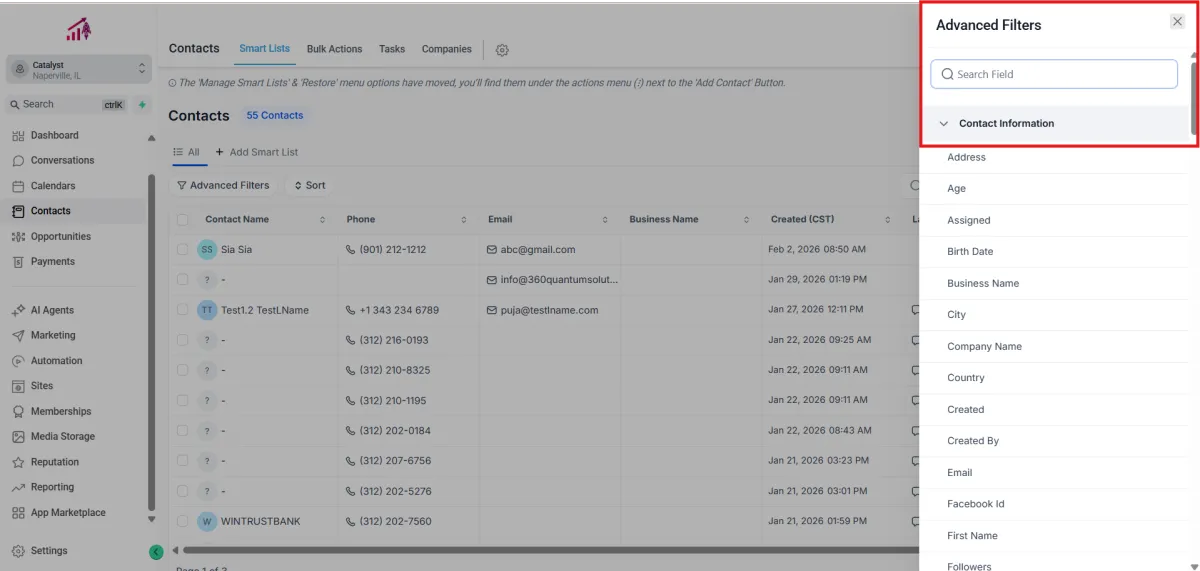
2.Apply filters to narrow down your audience.
3.Select checkboxes next to your chosen contacts.
4.Click a bulk action button (e.g., Add to Automation, Send SMS, Send Email).
Standard Contact Fields During Import
Below is a list of the standard contact fields that can be used when importing contacts:
Contact ID
Name
First Name
Last Name
Date of Birth
Contact Owner
Contact Source
Contact Type
Business Name
Phone
Email
Business Name
Address
State
City
Postal Code
Country
DND
Time Zone
Website
Additional Email
Additional Phones
Notes
Empowering businesses with innovative solutions, we are committed to providing seamless support and fostering growth. Connect with us for a brighter, smarter future!
Quick Links
Contact Us
Legal