Getting Started - Setup Social Planner
Keeping track of client conversations can be tricky when you're juggling multiple inboxes. But don't worry, we've made it super easy to sync your Gmail or Outlook inbox right into HighLevel. This means you'll see all your customer interactions in one unified place, so you'll never miss an important follow-up again.
TABLE OF CONTENTS
Setup Social Planner
Creating Posts Using Templates
Creating Custom Posts
Connecting More Social Accounts
Setup Social Planner
First things first, we'll get your accounts connected so you can start posting with ease. Here's how:
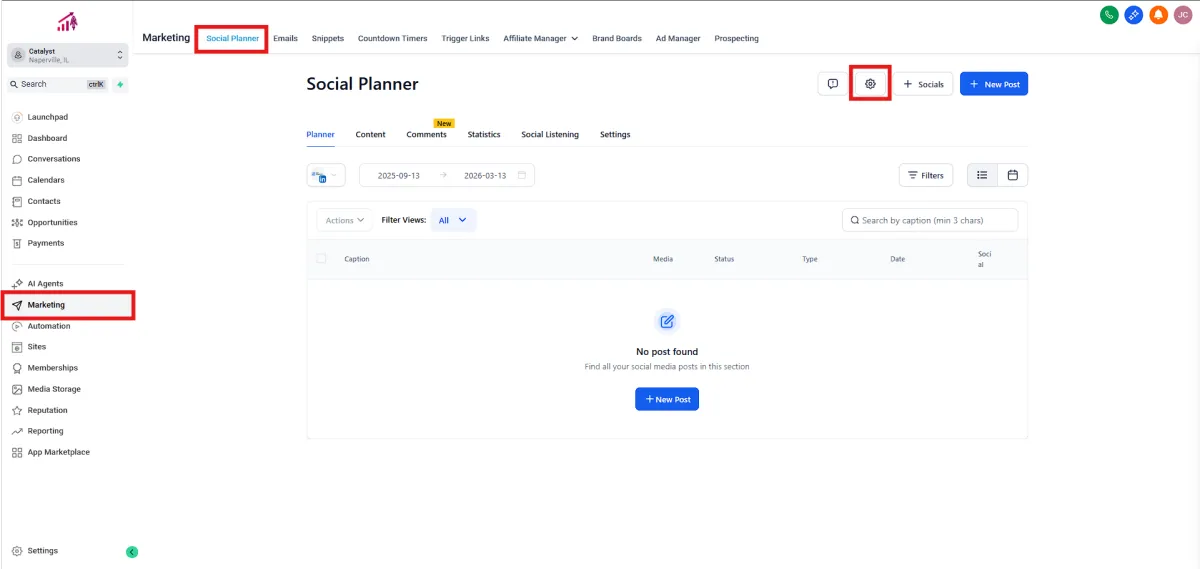
Navigate to Marketing > Social Planner > Settings (gear icon).
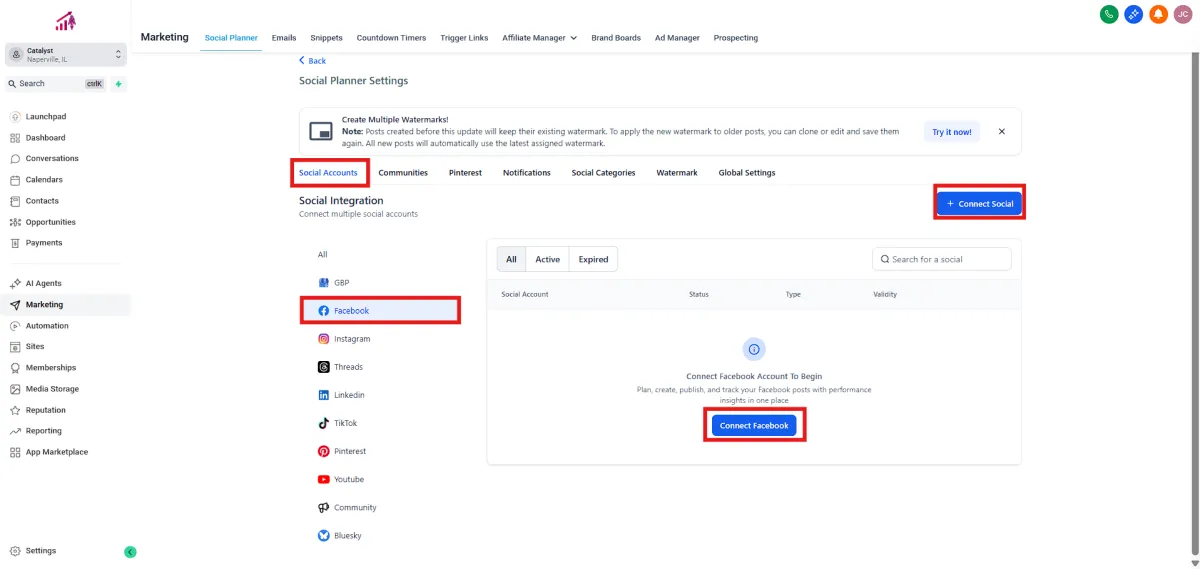
2.Click Connect Social > Connect Facebook.
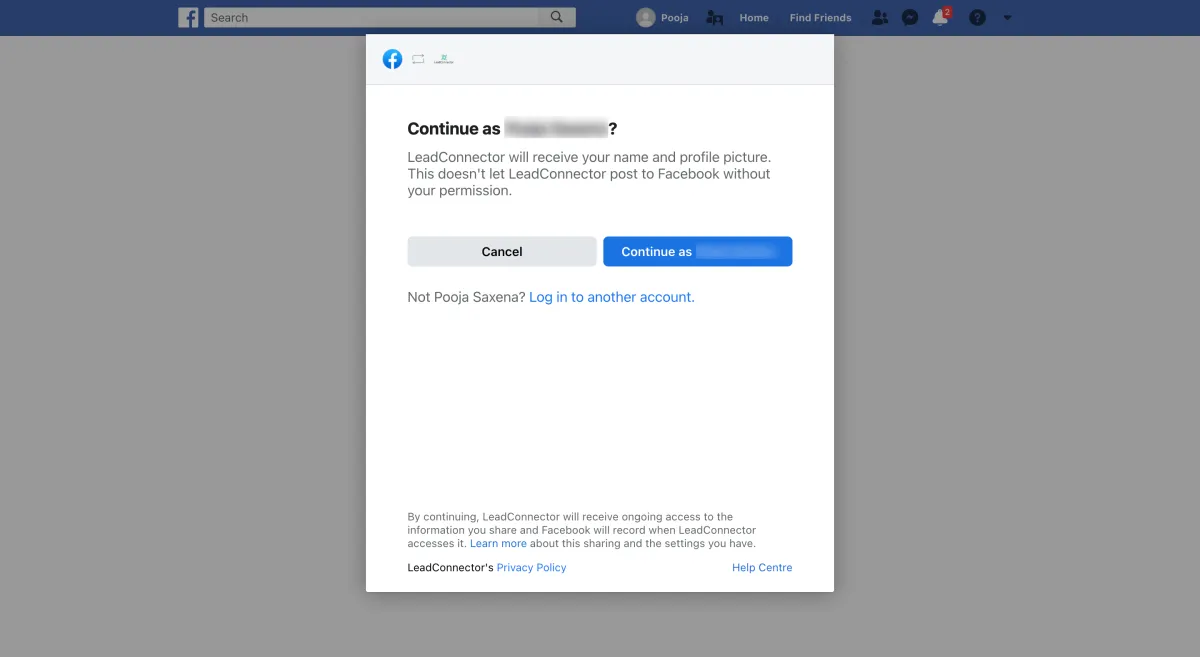
3.Log in to your Facebook account.
4.Choose at least one Facebook page you'd like to manage.
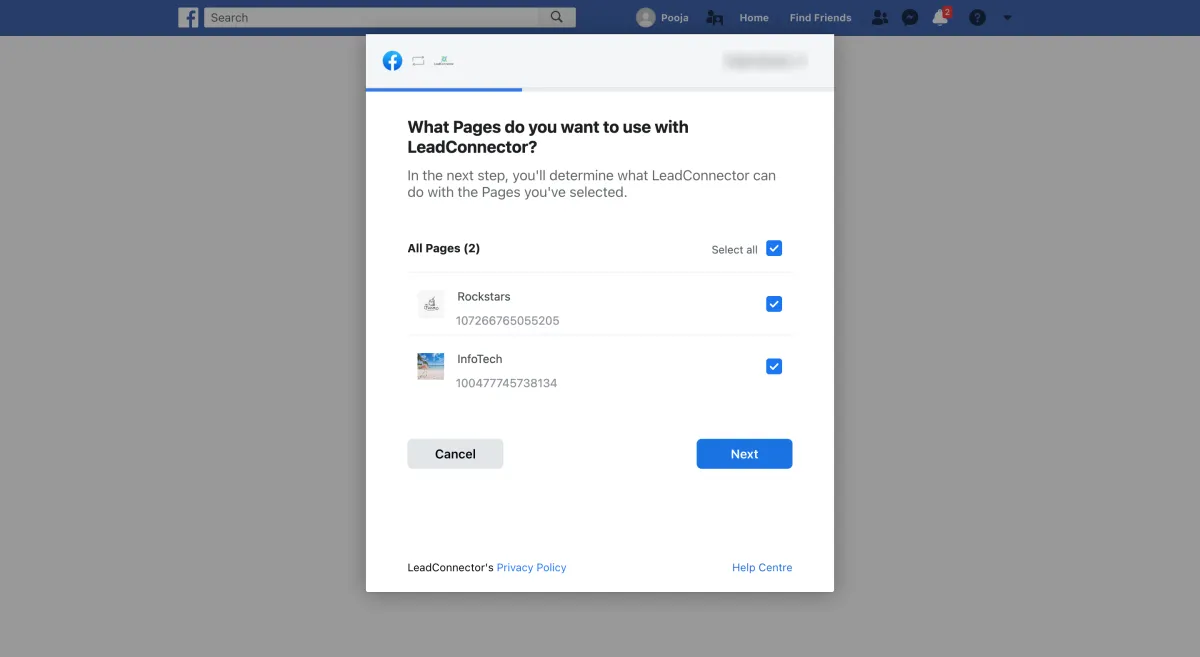
5.Verify your connection.
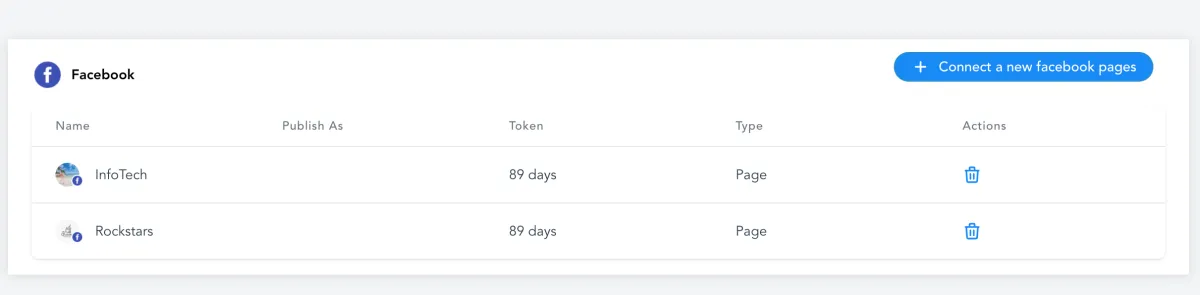
Now that you're connected, let's create some engaging posts!
Creating Posts Using Templates
Templates make your life easy. Quickly customize pre-made designs for impactful posts. Here's the scoop:
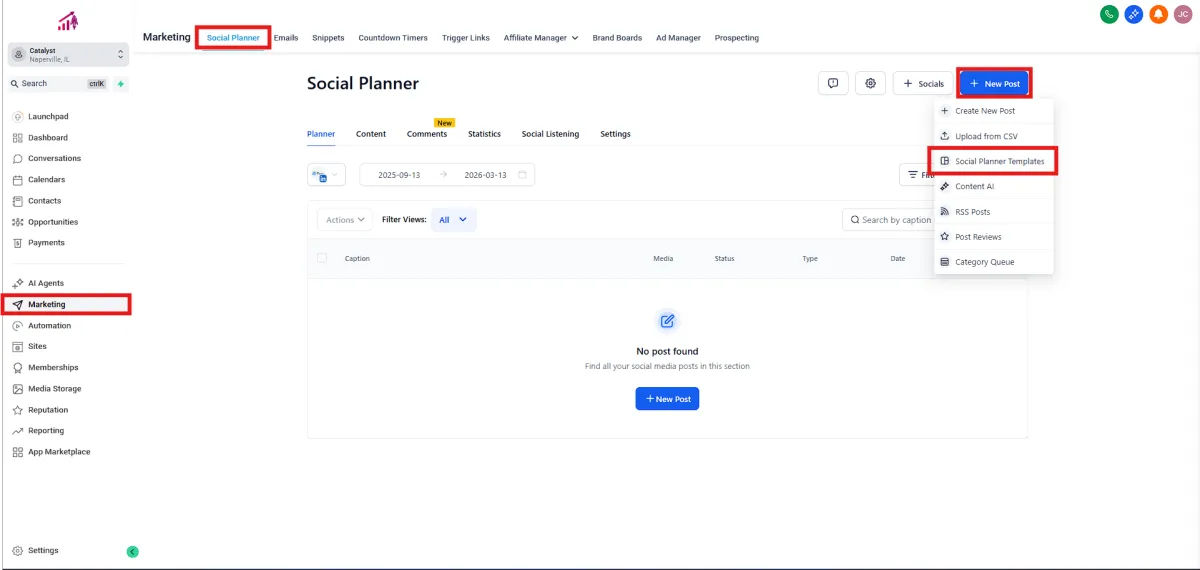
1.Navigate to Marketing > Social Planner > New Post > Social Planner Templates.
2.Search, browse, and filter available templates.
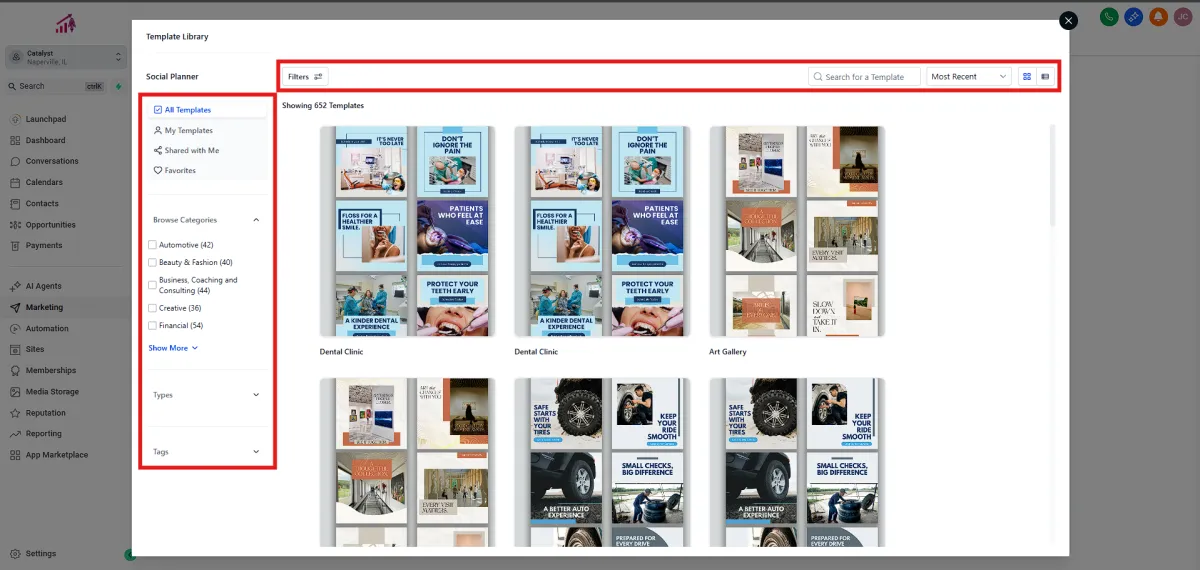
3.Preview a template you like, then click Continue.
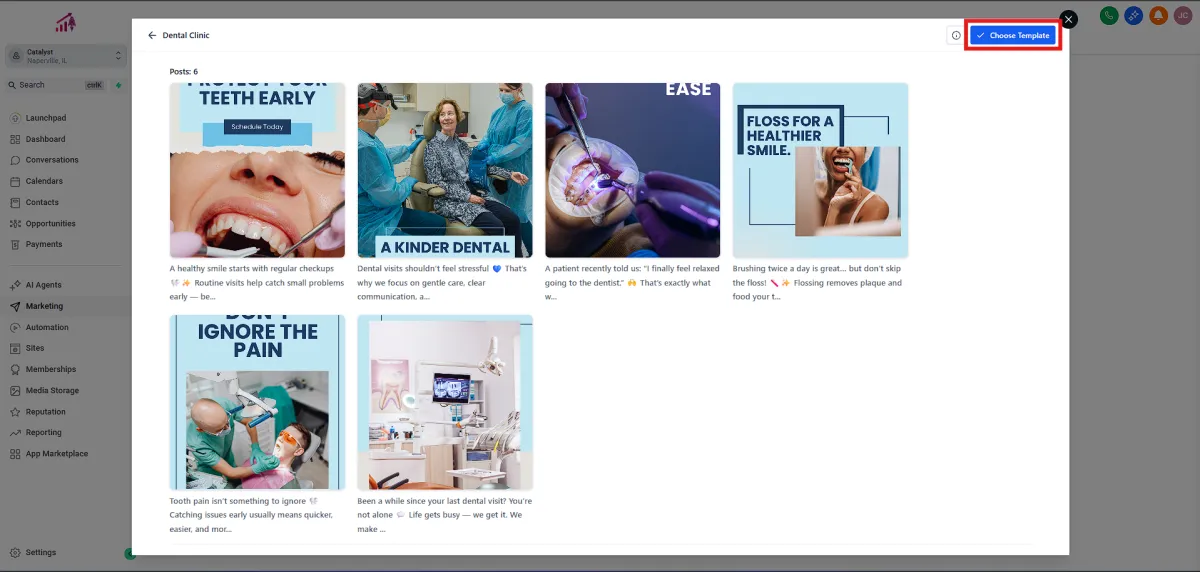
4.Schedule your selected template by clicking Select Socials (the plus icon on the right).
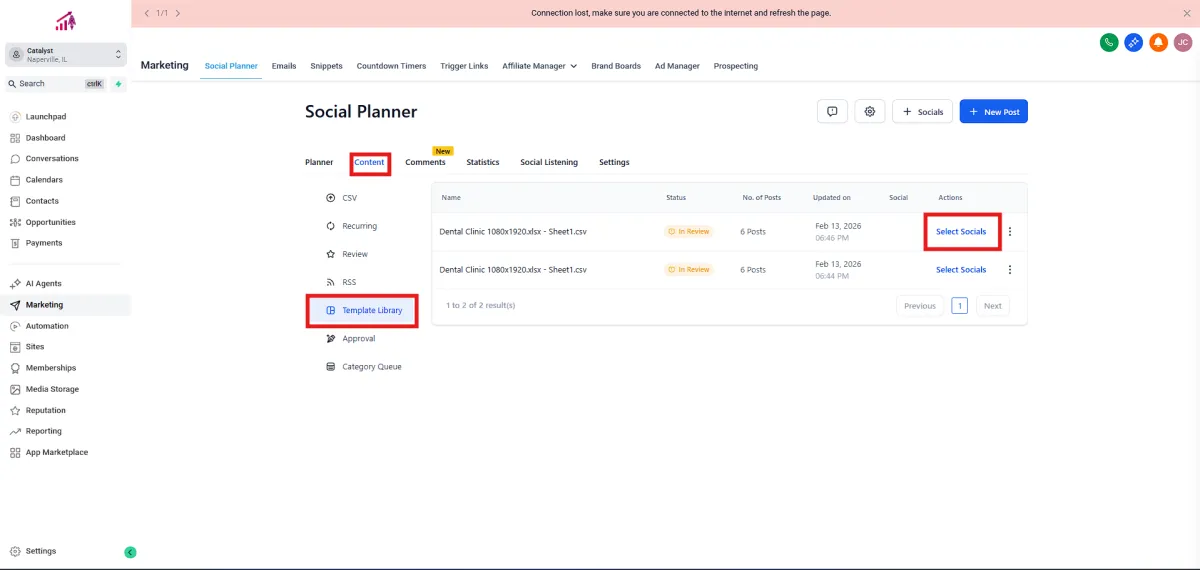
5.Fill out the necessary details in the Schedule Post modal, including your Facebook account and timing.
6.Click Schedule Posts.
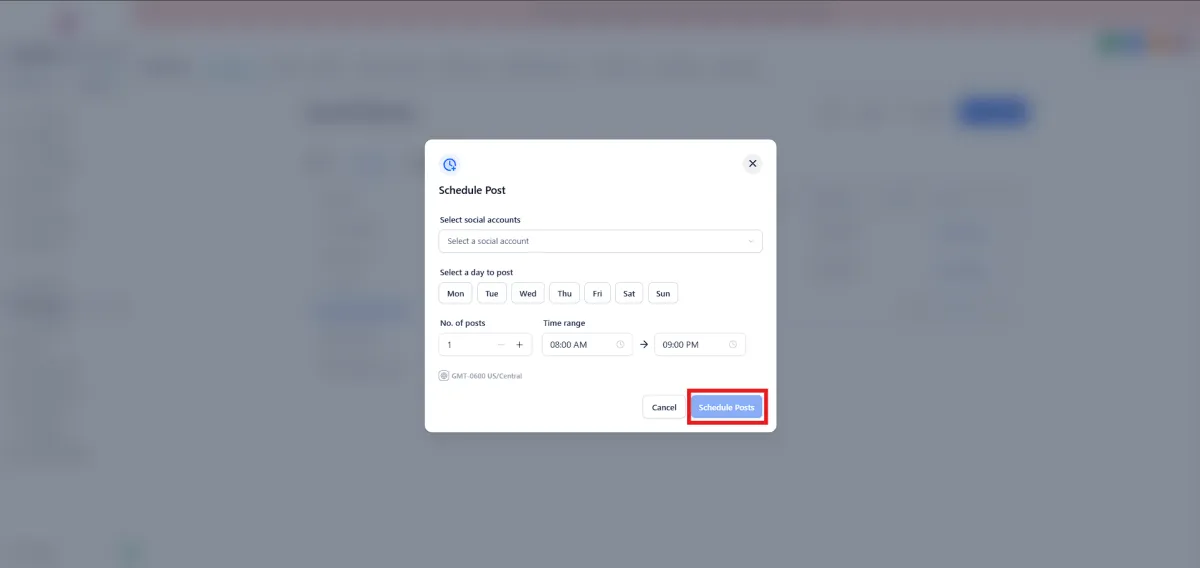
Your post is scheduled and ready to go! Next, why not explore creating your own unique post?
Creating Custom Posts
Feeling creative? Craft your own custom posts in just a few clicks. Here's how easy it is:
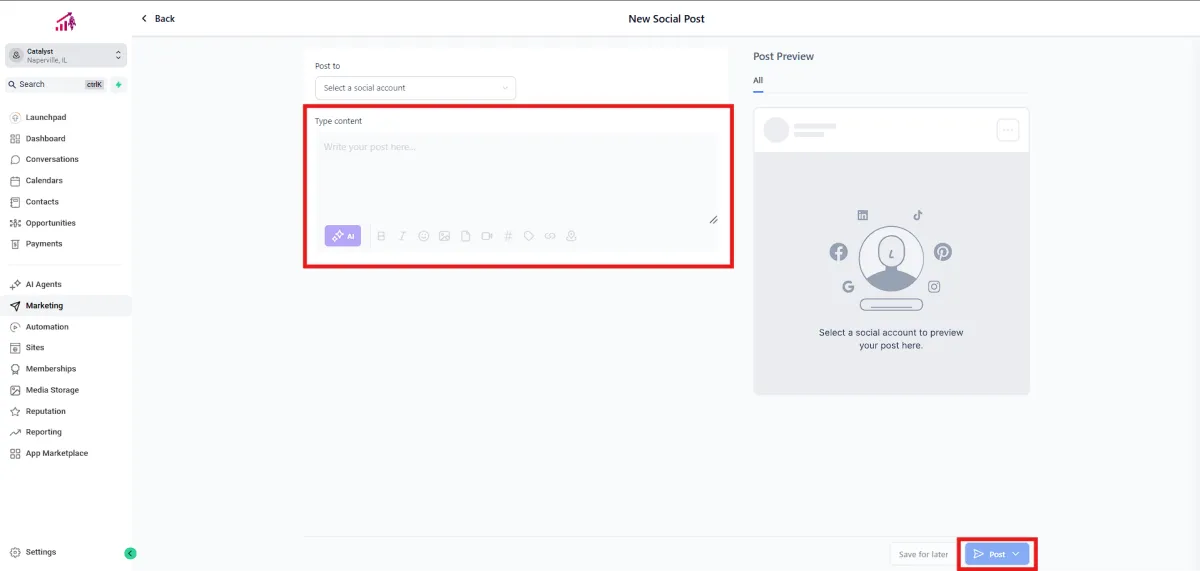
1.In Marketing > Social Planner, click New Post > Create New Post
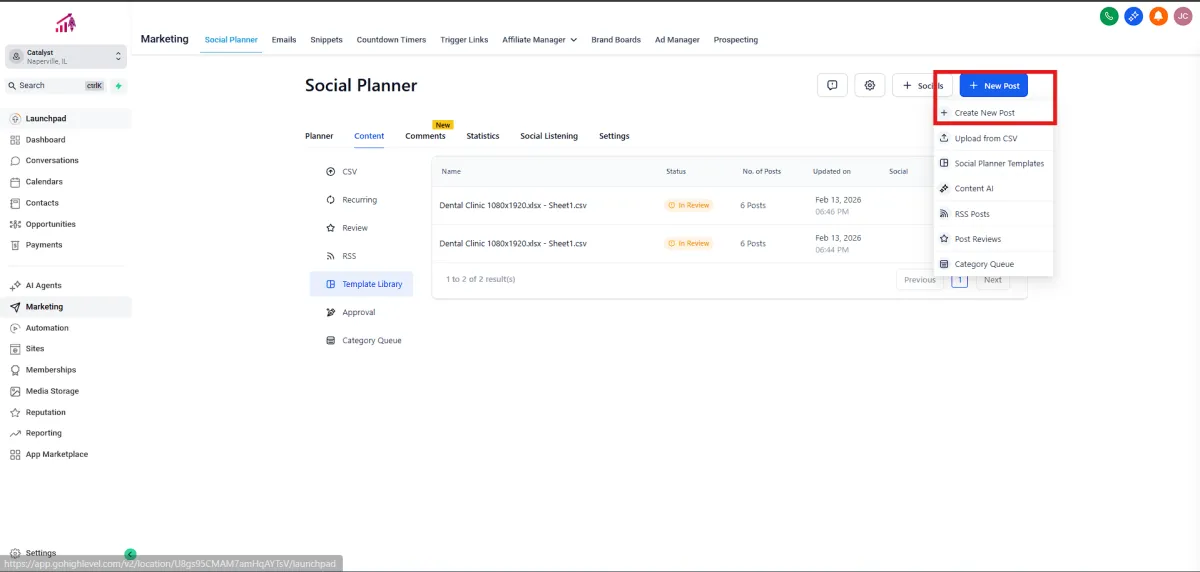
2.Enter your post details, selecting your social account, content, and more.
3.Choose to save for later, post now, schedule for later, send for approval, or schedule as recurring
Fantastic! Your content is all set. Now, let's enhance your experience further by connecting more social accounts.
Add media, preview, and edit thumbnails
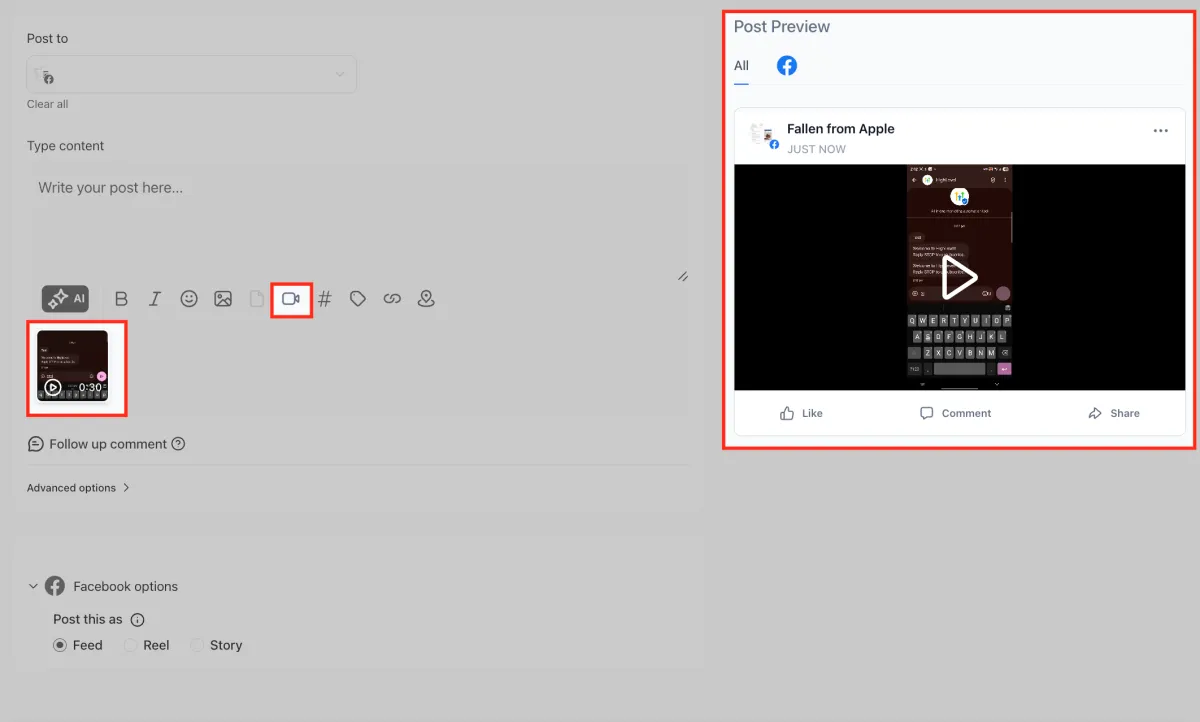
You can Add images or videos from the Media Library using the video and Image Icon on the Panel. When you add a video, you can Preview your media in the composer located at the left side.
Tip: You can replace or edit media and keep it in the same position in the post’s media sequence. This helps you swap files without changing your layout.
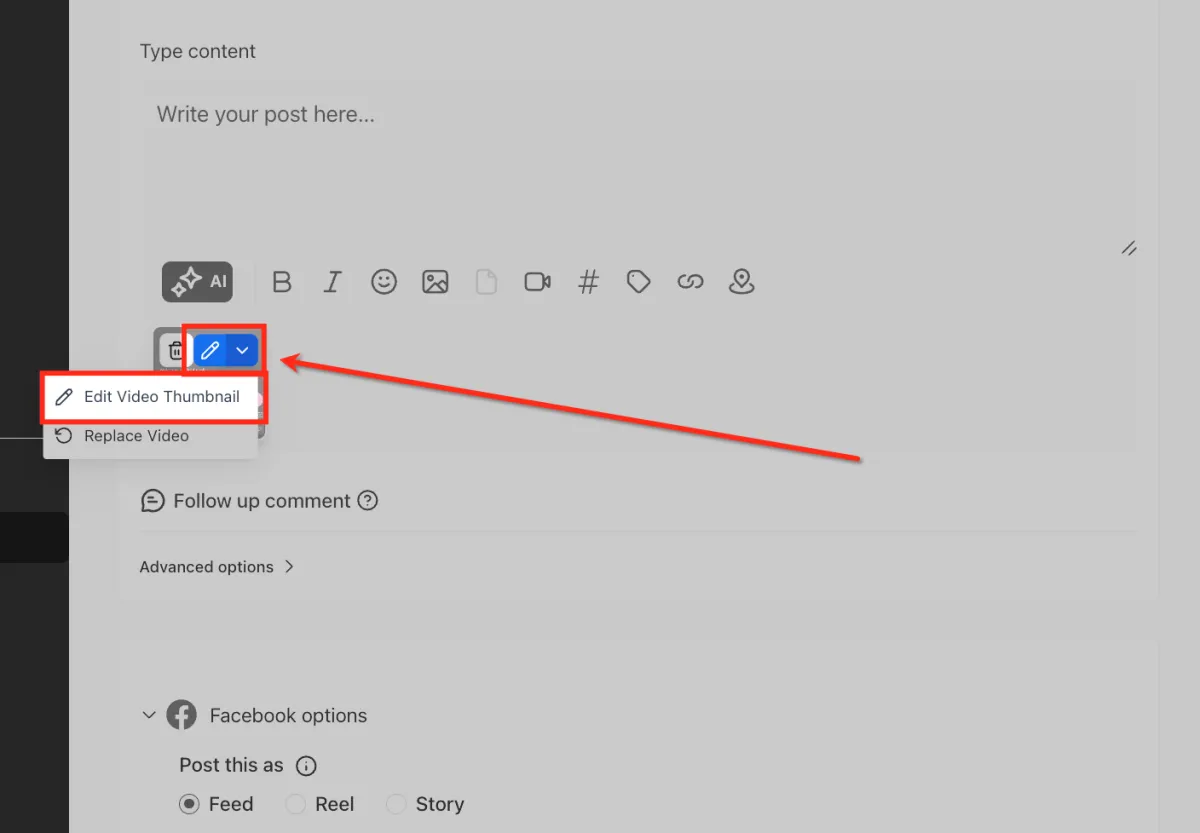
In order to edit a video thumbnail, click the pencil icon on the video thumbnail. (hover over the media for the edit option to appear.
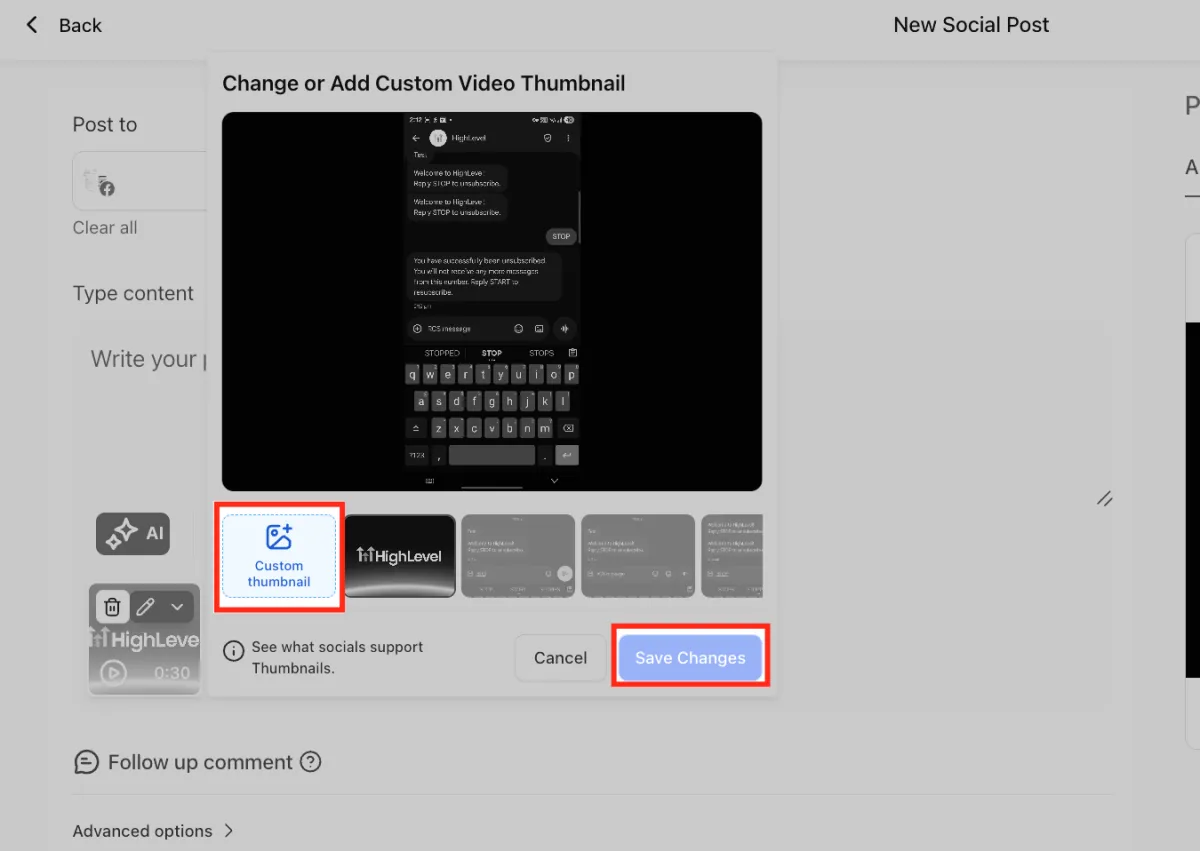
Click the custom thumbnail tab to upload an image.
Currently, Custom Video Thumbnails are Supported for
1. Facebook Pages
2. Instagram Business Account
3. LinkedIn Profiles and Pages
4. Youtube Video and Shorts
Connecting More Social Accounts
Expanding your social presence? Easily add more social media accounts to manage all in one place:
Click Settings (the gear icon).
Select additional social accounts you wish to connect.
Click Connect Social and follow the prompts.
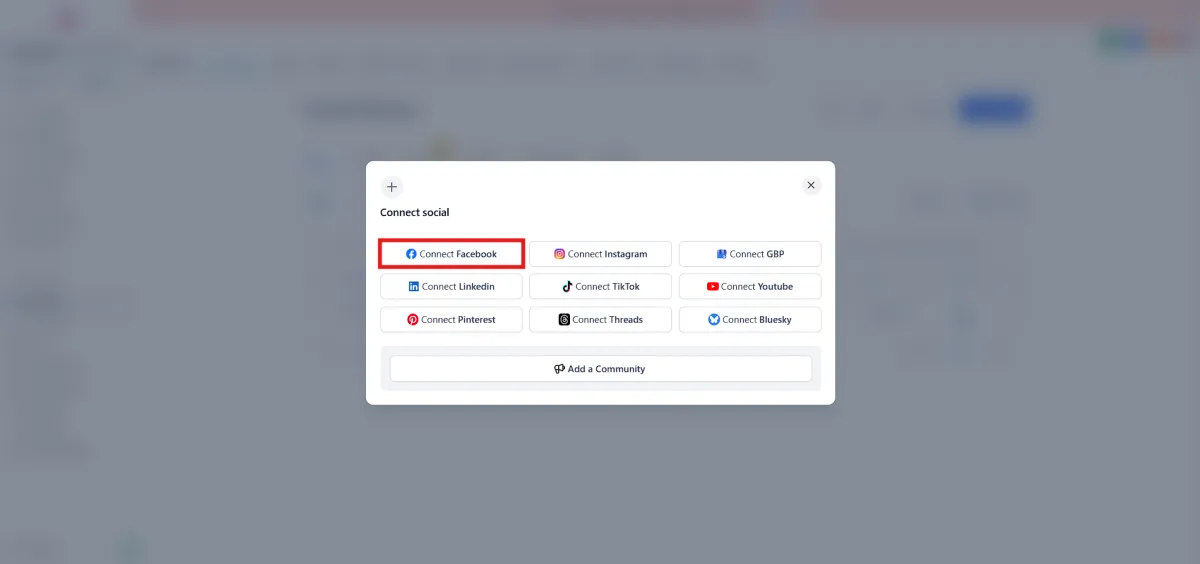
There you go! You're now managing multiple platforms effortlessly.
Empowering businesses with innovative solutions, we are committed to providing seamless support and fostering growth. Connect with us for a brighter, smarter future!
Quick Links
Contact Us
Legal